Finding your way around
The sidebar, command menu, help panel, keyboard shortcuts, and org switching - how to move fast.
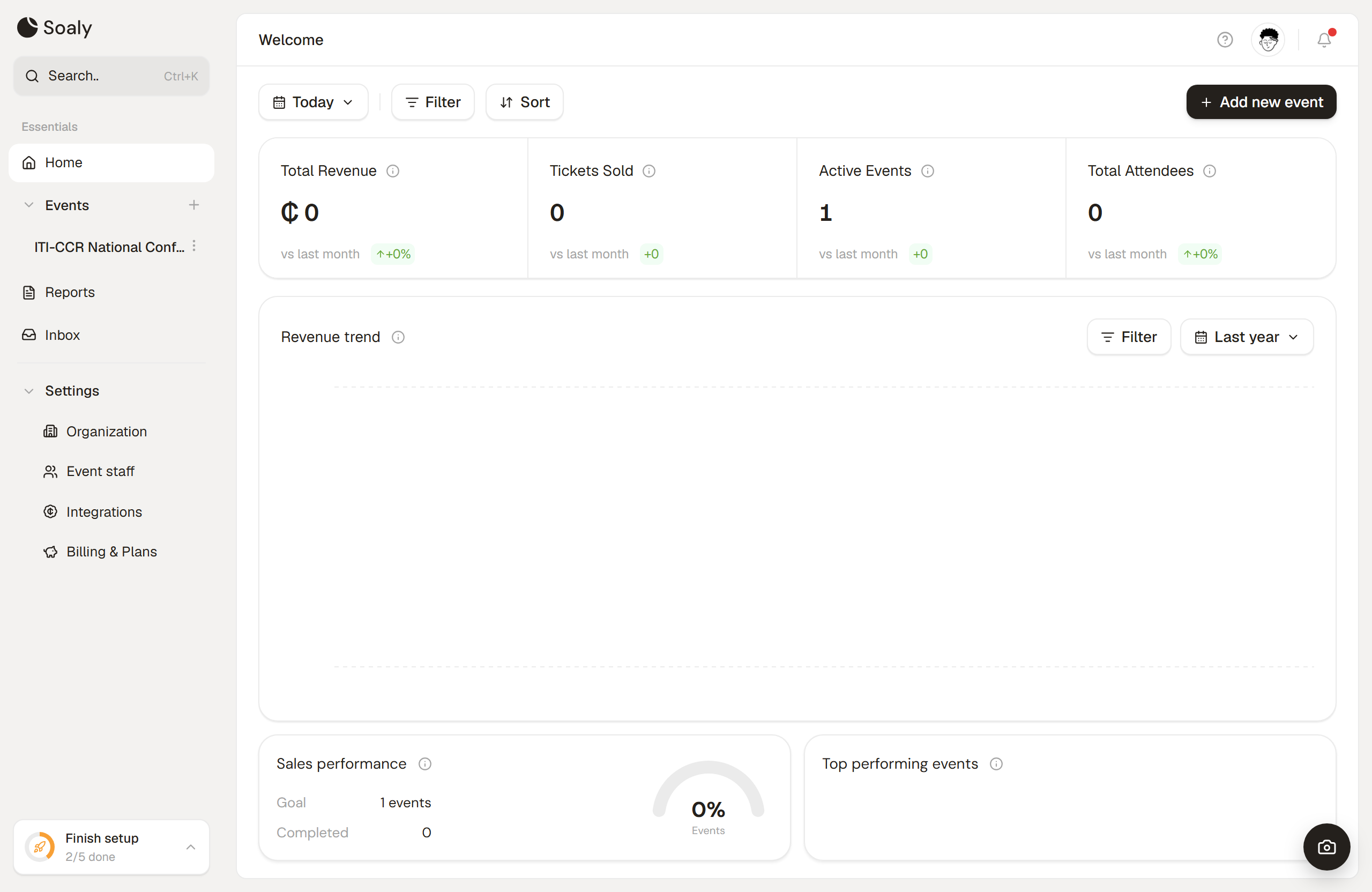
The Soaly interface is a fixed left sidebar, a top bar with breadcrumbs and account controls, and a main content area. Most navigation can be done entirely from the keyboard once you know the shortcuts below.
The sidebar
The left sidebar is your primary navigation. The exact items you see depend on your role - the list is filtered to what you're allowed to access.
- Home - your dashboard and (for new orgs) the setup checklist.
- Events - every event in the current organization, each expandable to its tabs.
- Reports - financial and attendance reporting (hidden from the check-in role).
- Inbox - the organization activity feed, with an unread badge.
- Settings - shown to owners and admins only.
On /settings and /guide, the sidebar swaps to that section's own menu with a way back to the app.
The command menu
Press Ctrl+K (Windows) or ⌘K (Mac) anywhere to open the command menu. Type to jump to any page, create an event, or fuzzy-search your events and bookings - no mouse required. ↑/↓ move, Enter selects, Esc closes.
The help panel
Click the ? in the top bar - or press ? - to slide out the help panel beside your work (not a popover). It has one search across pages, actions, your events, and shortcuts, a link to this guide, and a Contact support form. See Help panel & keyboard shortcuts.
Keyboard shortcuts
Shortcuts are ignored while you're typing in a text field, so they never fire by accident. The G shortcuts are a chord: tap G, release, then tap the destination key within ~1.2 seconds.
| Shortcut | Action |
|---|---|
Ctrl/⌘ + K | Open the command menu |
? | Toggle the help panel |
Ctrl/⌘ + / | Open the keyboard-shortcuts list |
Esc | Close a panel, menu, or dialog |
G then H | Go to Home |
G then E | Go to Events |
G then R | Go to Reports |
G then I | Go to Inbox |
G then S | Go to Settings |
Switching organizations
If you belong to more than one organization, use the switcher at the top of the sidebar to move between them. Each organization keeps entirely separate events, team, payments, and billing - nothing crosses over.
G then a letter to switch sections, or Ctrl/⌘ + K to search for anything specific.